User guide
How to install FakturaM Backup, set up backups, link Google Drive and restore a database.
Installation
You need Windows 10 or 11 (64-bit), SQL Server on the same computer (Express is fine) and administrator rights. Nothing else: .NET is included.
- Download the installer from the program page and run it.
- Confirm the Windows administrator prompt. The installer is digitally signed.
- Keep Install the background service for scheduled backups ticked: the service makes backups even when nobody is signed in, and gets permission to back up the SQL Servers on this computer.
- Optionally start the program at sign-in and add a desktop icon. Click Install, then Finish.
The program goes to C:\Program Files\FakturaM Backup. The language follows Windows: Croatian when Windows is in Croatian, otherwise English.
The program at a glance
FakturaM Backup runs in the notification area next to the clock. Double-click the icon to open the window; closing the window keeps the program running. Exit and this guide are in the icon's right-click menu.
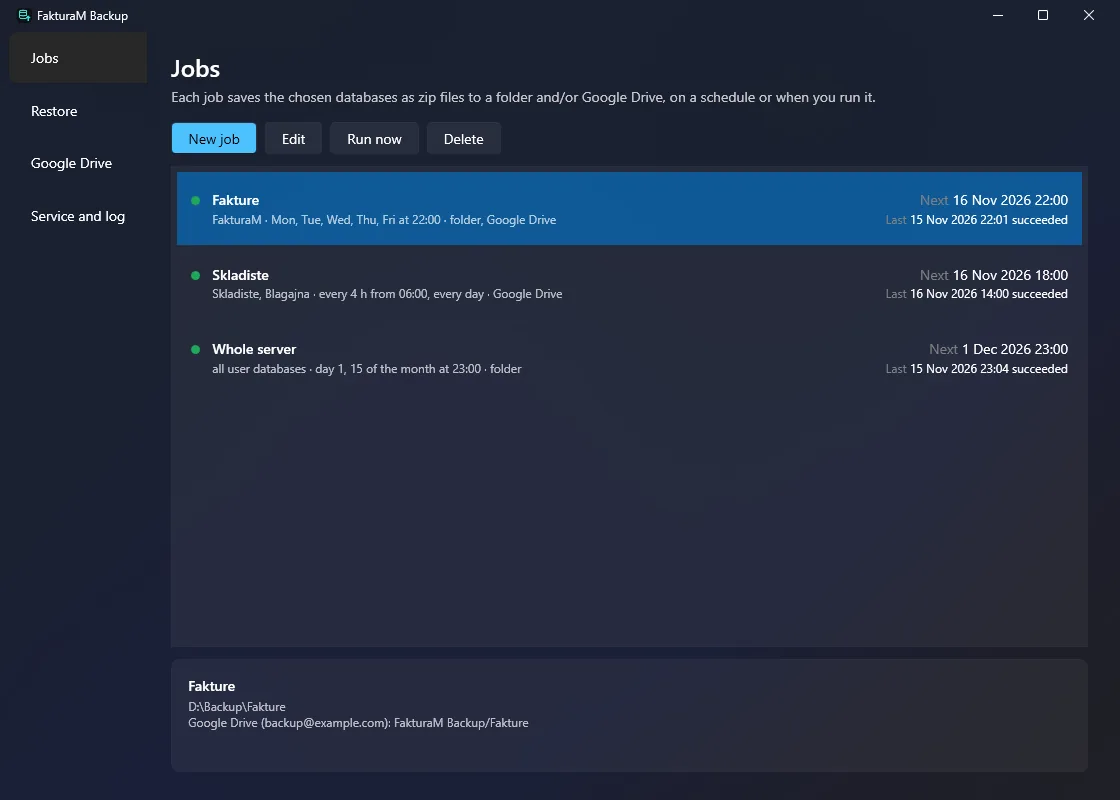
- Jobs: what is backed up, where and when; run a job now.
- Restore: find a backup on Google Drive or in a file and restore it.
- Google Drive: link and unlink Google accounts.
- Service and log: who makes the scheduled backups, and the log of everything that happened.
Creating a job
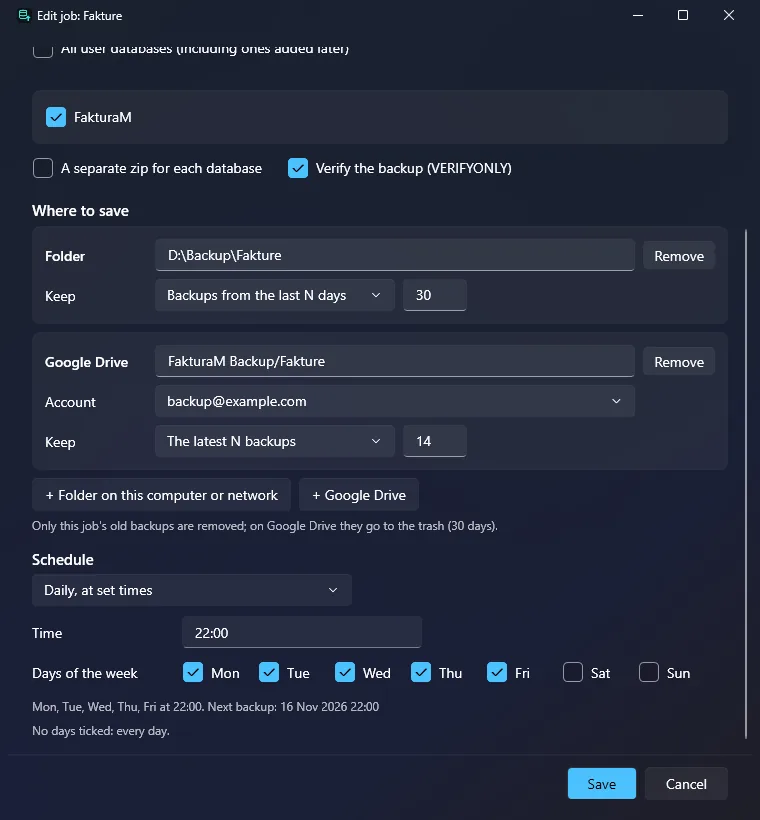
On the Jobs tab, click New job. Fill in the window from top to bottom and click Save.
- Job name: the zip files are named after it, e.g. Invoices__2026-11-16__22-00.zip.
- SQL Server: pick the instance (for example .\SQLEXPRESS) and the sign-in. Windows sign-in is usual; for SQL sign-in enter the user and password, which is stored encrypted. Click Load databases.
- Databases: tick the databases, or All user databases to include ones added later. A separate zip for each database gives one file per database; Verify the backup lets SQL Server check it.
- Where to save: add a folder on this computer or the network (\\server\share also works) and/or Google Drive (account and folder). For each, choose how long backups are kept: all, only the latest, the latest N, or the last N days. Only this job's old backups are removed; on Google Drive they go to the trash for 30 days.
- Schedule: daily at set times (tick weekdays, or none for every day), monthly on set days (31 means the last day), or several times a day every N hours from a start time. The line under it shows the next backup.
Linking Google Drive
- Open the Google Drive tab and click Link Google account. Your browser opens.
- Choose the Google account. If Google says the app is not verified, click Advanced, then Go to FakturaM Backup.
- Allow access. The browser tab says the account is linked, and the account appears in the list.
Link as many accounts as you need, for example your own and the one your clients' backups go to. The program uploads only into folders it created and only changes or removes its own files; it reads other zip files only to find backups. Details: privacy policy.
To unlink, select the account and click Unlink selected. Backups on Google Drive stay; jobs that save to that account report an error until you link it again.
Running and checking backups
- Run now: select a job and click Run now to make a backup immediately.
- The dot in front of each job shows the last result: green succeeded, red failed (the reason is shown below the list), grey not run yet.
- A message in the notification area tells you when any job finishes or fails.
- If the computer was off at backup time, the backup is made once as soon as it is on again.
- Service and log: shows whether the service runs. Without the service the program makes scheduled backups only while it is running. Install service... and Update service... ask for administrator rights. The log lists every backup, upload and removed old backup, newest first.
Restoring a database
From Google Drive
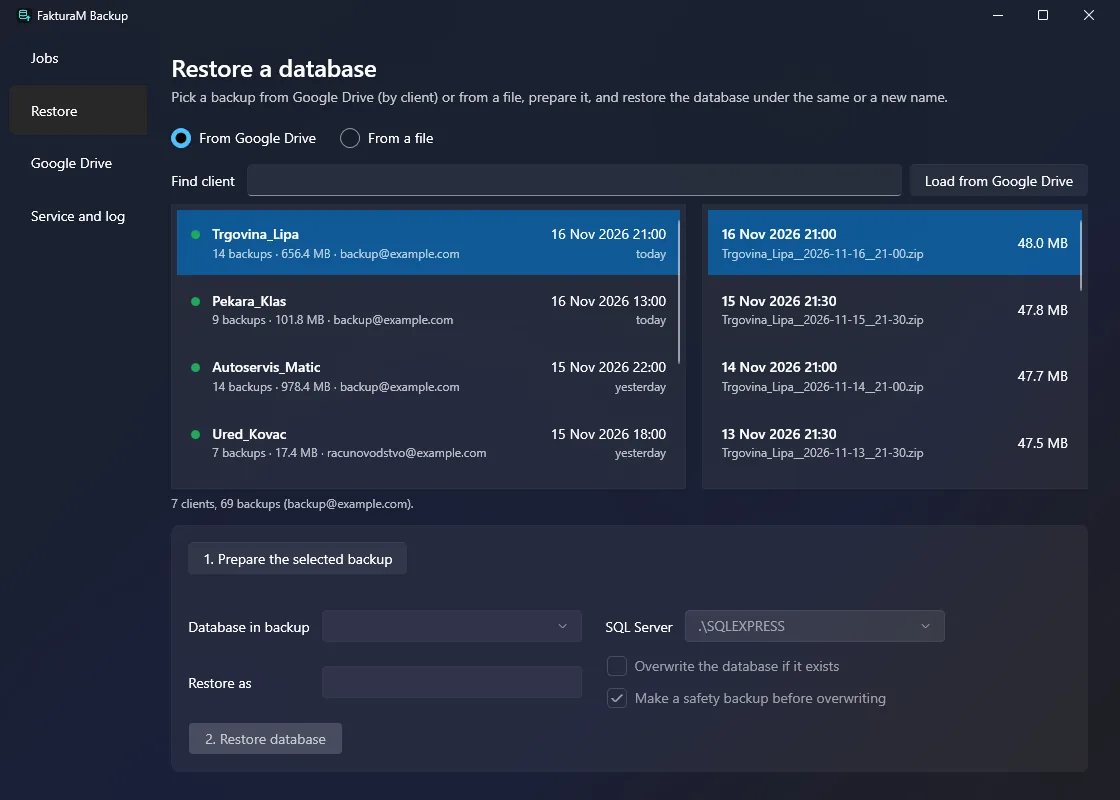
- On the Restore tab, click Load from Google Drive. Every backup the linked accounts can see is listed by client, also in shared folders and old Cloud Backup Robot folders.
- Type part of a name in Find client. The dot shows the age of the newest backup: green up to 2 days, yellow up to 7, grey older.
- Select the client and the backup on the right, then click 1. Prepare the selected backup (or double-click it). It is downloaded and checked.
- Check the database, the SQL Server and Restore as. For a Drive backup the client's name is suggested, so it never clashes with a local database of the same name.
- Click 2. Restore database.
From a file
Choose From a file and pick the zip (FakturaM Backup or Cloud Backup Robot), then continue from step 3.
Overwriting an existing database
A database that exists is overwritten only when Overwrite the database if it exists is ticked. Its current content is saved first (a safety backup in C:\ProgramData\FakturaM Backup\pre-restore) and everyone using it is disconnected.
Where things are
- Backups: name__yyyy-mm-dd__hh-mm.zip in your folders and on Google Drive (by default in FakturaM Backup/job name). Each zip holds one .bak per database and a checksum file.
- Program: C:\Program Files\FakturaM Backup
- Jobs, results, Google sign-ins, logs: C:\ProgramData\FakturaM Backup (logs in the logs folder, one file per month; Google sign-ins are encrypted)
- Safety backups before a restore: C:\ProgramData\FakturaM Backup\pre-restore
Updating and removing
To update, run the new installer: it stops the service, replaces the program and starts the service again. Jobs and settings stay.
To remove it, open Windows Settings, Apps, FakturaM Backup, Uninstall. The service and the program are removed; jobs, Google sign-ins, logs and your backups stay.
Troubleshooting
- Cannot connect to SQL Server: check the server name (e.g. .\SQLEXPRESS) and that the SQL Server service is running.
- A job works with Run now but fails on schedule: the service may lack permission on that SQL Server. Click Update service... on the Service and log tab.
- Not enough space: free space on the drive named in the message, or keep fewer backups.
- The Google account needs to be linked again: access was revoked or expired; on the Google Drive tab, click Link Google account and choose the same account.
- The backup was made on a newer SQL Server: restore it on a computer with the same or a newer SQL Server.
- The database already exists: choose another name in Restore as, or tick Overwrite the database if it exists.
- SQL Server runs on another computer: install FakturaM Backup on the computer where SQL Server runs.
- Still stuck? Open the log (Service and log, Open folder) and call us on 095 854 5557 or write to info@bestek.hr.
Command line (advanced)
Everything the window does is also available through fmbackup.exe in the program folder, for scripts and remote support. The list of commands: fmbackup help. Examples:
fmbackup databases --server .\SQLEXPRESS
fmbackup job list
fmbackup job run --name Fakture
fmbackup drive backups --client Fakture
fmbackup restore --server .\SQLEXPRESS --zip D:\Backup\Fakture__2026-11-16__22-00.zip --as Fakture_test
Talk to us
Questions while setting it up? Call or write to us.